Your Aim Is Not the Problem. Your Sensitivity Settings Are.
April 19, 2026
8 min read
Most Free Fire players blame their aim when they miss. They practice drag shots in training mode, watch highlight videos, and still find themselves losing fights they should be winning. The problem is almost never the aim itself.
It is the sensitivity settings underneath it. Wrong settings create an inconsistency that no amount of practice can fix. This guide gives you the right numbers for your device, explains what each slider actually does, and shows you how to test and lock in your setup.
Why Sensitivity Matters More Than You Think
Every movement you make in Free Fire, from turning to aim down sights to flicking to a headshot, runs through your sensitivity settings first. If those numbers are off, your thumbs are sending the right signals, but the game is misreading them.
Your device adds another layer to this. A 60 Hz screen on a low-end phone feels different from a 120 Hz display on a flagship. The same sensitivity number behaves differently across devices because frame rate and screen refresh rate change how movement is registered and displayed.
Compete on ZP Battle Zone
Apply what you just learned
Join 35,000+ Pakistani players competing in live Free Fire tournaments every week. Verified results, fair play, organized competition.
Default settings are built for the average. They are not built for your device, your playstyle, or your grip. That is why copying settings blindly from a pro rarely works. Their phone, their FPS, and their thumb placement are all different from yours.
What Each Sensitivity Slider Actually Controls
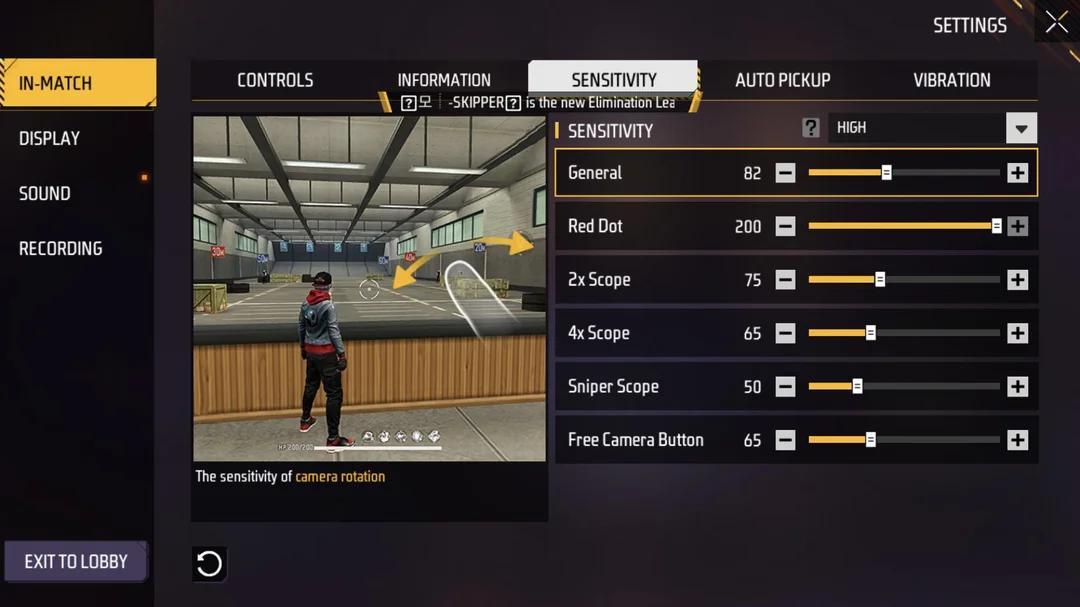
Free Fire has six core sensitivity settings. Each one controls a specific type of movement. Understanding what each one does lets you change the right slider instead of guessing.
General sensitivity
This controls how fast your character turns during open movement, before you aim down any sight. It affects rotations, quick 180-degree turns, and free-look panning. Set it too low, and you cannot react to enemies flanking you. Set it too high and your character spins past targets.
Red Dot and No Scope sensitivity
This controls your aim speed when using red dot sights or firing without a scope. It is the setting most directly linked to drag headshots. Players who drag from body to head need this calibrated precisely. Too high and you overshoot the head. Too low and the drag feels sluggish and unresponsive.
2x Scope sensitivity
Mid-range fights with ARs happen through the 2x scope more than any other. This setting controls how fast your aim moves while scoped in at 2x. Most players set this too high, which makes spray control nearly impossible. Lower is better here than most players expect.
4x Scope sensitivity
Used for longer-range AR and sniper engagements. The 4x requires steadier aim than the 2x, so this number should always be lower than your 2x setting. Players who set 4x and 2x at the same value always struggle with recoil control at distance.
Sniper Scope sensitivity
For single-shot snipers at long range. This should be your lowest sensitivity number. Fast flicks at sniper range cause you to overshoot. Pros keep this deliberately lower than everything else to allow precise adjustments before a shot.
Free Look and ADS sensitivity
Free Look controls how fast you look around without changing your movement direction. ADS sensitivity affects aim speed when fully scoped in. Both are important for tracking moving targets while holding a position. Most players ignore these two and then wonder why their tracking feels disconnected.
Best Sensitivity Settings by Device
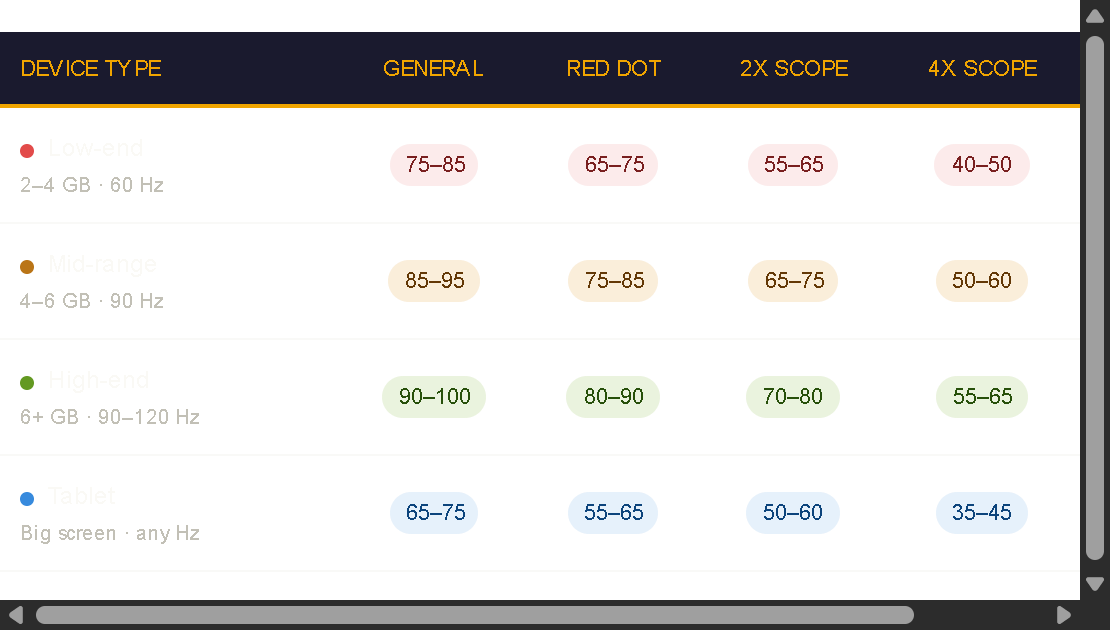
There is no single best sensitivity for every player. But there are reliable starting ranges based on your device type. Use the table below to find your starting point, then fine-tune from there.
These are starting ranges, not final numbers. Your grip style, thumb size, and playstyle will push you toward the lower or higher end of each range. Start in the middle and adjust one slider at a time.
How to Access Your Sensitivity Settings
Open Free Fire and go to the main lobby. Tap the Settings icon in the top right corner. Select the Sensitivity tab. You will see all six sliders laid out. Adjust them here before entering any match.
One important note: changes take effect immediately in your next match. You do not need to restart the game. This makes it easy to test adjustments quickly across back-to-back sessions.
How to Test and Lock In Your Settings
The biggest mistake players make with sensitivity is changing too many sliders at once. You cannot isolate what is working if everything changes simultaneously. Follow this process instead:
1.Start with General and Red Dot only. Leave everything else at your device’s starting range.
2.Play two to three ranked or custom matches with those settings. Do not adjust mid-session.
3.After the session, ask yourself: Were you overshooting headshots or undershooting them? Overshoot means too high. Undershoot means too low.
4.Adjust by 5 points in one direction. Play another two sessions. Repeat until drag shots feel natural.
5.Once General and Red Dot feel right, move to the 2x scope. Repeat the same process.
6.Work down through 4x and Sniper last since those need the least adjustment.
Training Mode is useful for isolated flick and drag practice, but it does not replicate ranked pressure. Always confirm your settings in real matches before committing to them.
Touch Control Tips That Work With Your Sensitivity
Sensitivity settings and thumb placement work together. The wrong grip makes even perfect sensitivity feel wrong. Here is what actually helps on mobile:
▸Split-thumb players, one thumb on movement and one on aim, generally do better with slightly higher General sensitivity because each thumb handles a single job.
▸Players who use three or four fingers can afford lower General sensitivity because they have dedicated fingers for actions like jumping and firing without lifting their aiming thumb.
▸For drag headshots, place your aiming thumb slightly below center on the screen. Dragging upward from this position gives you more travel distance and better control than starting from the middle.
▸Keep your movement joystick sized smaller than the default. A smaller joystick gives more precision in tight rotations without requiring large thumb movements.
Pair these adjustments with your sensitivity settings, not against them. If your thumbs are moving correctly but your settings are working against you, the fight was already lost before it started.
Mistakes That Are Quietly Hurting Your Aim
▸Maxing every slider because higher feels more responsive. High sensitivity reduces your ability to make micro-corrections. It looks fast and feels powerful until you need to hold a precise angle.
▸Copying pro settings without matching their device. A pro on a 120 Hz flagship running settings optimized for that hardware will perform differently on your 60 Hz mid-range phone.
▸Changing settings every session. Your muscle memory needs at least three full sessions to adapt to a new sensitivity. Players who adjust after every bad game never build consistent aim.
▸Ignoring graphics and FPS settings. Low FPS creates input lag that makes your sensitivity feel heavier and slower than it actually is. Set graphics to Smooth and Frame Rate to High before touching sensitivity.
▸Setting 2x and 4x scope sensitivity too close to General. Each scope level should step down in sensitivity. A descending scale gives you natural control at every range.
Pre-Match and Post-Match Checklists
Before every ranked session
▸Confirm your graphics are set to Smooth with a frame rate.
▸Check that General and Red Dot feel comfortable from your last session.
▸Make sure 4x and Sniper are lower than your 2x setting.
▸Do five minutes in Training Mode to warm up your muscle memory before ranked.
After a session where your aim felt off
▸If you were consistently overshooting headshots, reduce Red Dot by 5 points.
▸If tracking moving targets felt choppy, lower Free Look or ADS sensitivity instead of General.
▸If recoil felt uncontrollable at distance, drop 2x scope sensitivity by 5 to 10 points.
▸Never adjust more than two sliders between sessions.
Sensitivity Is a Foundation. Build It Right Once.
Players who find their correct sensitivity and stop varying it develop aim faster than players who constantly tinker. The settings in this guide give you a proven starting point for your device. The testing process gives you a method to dial it in precisely.
Do the work once, lock it in, and then let your muscle memory do the rest. Every session after that builds on a foundation that actually supports you instead of fighting against you.
ZP Battle Zone covers Free Fire settings, meta updates, and device-specific guides daily. Bookmark this page and come back whenever a new update changes how sensitivity feels in-game.
What device are you on, and what sensitivity are you running? Share it below. Someone reading this right now needs exactly your setup.